
WIP app learning in Windows Analytics – Mobile-First Cloud-First
This is not a blog post about setting up Windows Information Protection (WIP), but on how to help the IT admin see what applications there are used in the corporate environment and how to get the app inside the WIP policy so it is a allowed app from IT.
When using a AzureAD joined Windows 10 device that are MDM managed with Intune – it is not possible to use the same tools as you can do on a domain joined device, a example is event forward collector. Windows Analytics is the best way of collecting the information the information in my opinion, but every company that want a great inside into the Windows 10 environment should be running Windows Analytics.
When you are trying to access your company resources in this example Office 365 from a non company app in this example chrome browser you will get blocked.

When using Windows Analytics Device health solutions you will be able to monitor WIP app Learning
You can see who many users in your organisation is using WIP, and what apps that have WIP access events, in this example Google Chrome when trying to access Office 365

Click on Google Chrome to see detailes
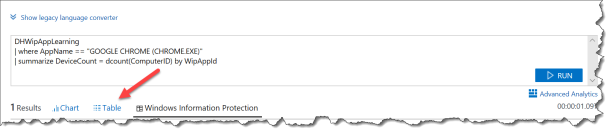
Click on Table and you have all the information you need to change your WIP policy in Intune

Inside the Intune App protection policy for Windows:
Click Add apps

Enter the information you need to get Google Chrome a corporate app:
Name = Google Chrome
Publisher = O=GOOGLE INC, L=MOUNTAIN VIEW, S=CALIFORNIA, C=US
Product Name = Google Chrome
File = chrome.exe
Min version = * (You can specify a min version number if your corporate policy state that you need to be specific)
Max version = * (You can specify a min version number if your corporate policy state that you need to be specific – just remember to change it when Google releases a new version of Google Chrome or it will no longer be a corporate app))

After a sync of Intune policies to the device Chrome Browser is a corporate app that are allowed to access corporate data.

Happy testing
Read more at:
Protect your enterprise data using Windows Information Protection (WIP)
![Windows-Hello-For-Business-Active-Directory[1]](https://maciejrebisz.com/wp-content/uploads/2025/08/Windows-Hello-For-Business-Active-Directory1-1024x576-65x65.png "Windows-Hello-For-Business-Active-Directory[1]")
![B-Intune-Graphic[1]](https://maciejrebisz.com/wp-content/uploads/2025/08/B-Intune-Graphic1-1024x603-65x65.png "B-Intune-Graphic[1]")
![wp-1593849019379[1]](https://maciejrebisz.com/wp-content/uploads/2025/08/wp-15938490193791-65x65.jpg "wp-1593849019379[1]")