
Managed browser extensions on Edge with Intune – Mobile-First Cloud-First
When we are starting to test a new browser in our organization we also need an how we are configuring the browser both from a end user and a security perspective. If your end user has one browser on there device that are not managed, then in my experience that is also the browser that the end user will use as there primary browser to surf the internet and doing there everyday work in the company. Why is it important to know what extensions that your end user has on there corporate devices?? It does not require admin privileged to install extensions and there can be malicious code inside the extensions or the extensions can get access to corporate data or identity,
You also need to understand that with Microsoft Edge based on chromium you can install first part extensions from the Microsoft Store or you can use a 3. part store like Chrome web store.
So in this blog post you will learn how to use Intune to manage browser extensions for Edge browser.
If your browser does not have a extensions policy then the end user can install browser extensions as they see fit. That can be fine in some companies but in other companies they need to have full control over what extensions that are allowed to be installed. To help the end user get the extensions that you are allowing them to use in your company – you can automatic deploy the extensions with a policy.
On your test device you can install the extensions both for testing but also to get the information you need to deploy it automatic with a policy.
First the Microsoft Store find the extension you want to install

I have found the Office browser extension in Microsoft Store for the new Edge browser, if you have been using extensions on the build in Edge browser in Windows 10 you will see that it is many of the same extensions.

You can also get extensions from a 3 part store like Chrome web store by default 3 part stores are disabled and you as a end user need to do a manual action
- Enable : Allow extensions from other stores
- Click Allow

Then you can use 3 part. extension stores, in this case I just searched for Microsoft extensions in Chrome web Store
- Search for Microsoft
- Click on Microsoft Teams Screen sharing

Then you can click Add to Chrome and

Then you have the two extensions installed.

If you don’t want the end user to install the extensions on there devices you can install the extensions automatic in a policy. But fist you need the strings where the extensions are stored online. There is different URLs for Microsoft and Chrome
For Microsoft it is : https://extensionwebstorebase.edgesv.net/v1/crx
For Chrome web store it is : https://clients2.google.com/service/update2/crx
A easy way of finding the unique identifier for the extensions is to:
- Enable Developer Mode
- Get the ID for Office extension from Microsoft Store
- Get the ID for Microsoft Teams Screen sharing extension from Chrome web store

Save this information – you are going to need it when creating the policy.
Now to creating a Edge policy in Intune:
Start Microsoft 365 Device Management portal
- Click Device Configuration
- Click Profiles
- Click Add

Do to Edge being a win32 app, we have GPO settings to configure Edge, and in Intune that is Administrative Templates. You need to have Edge version 77 or never installed for the policy to be applying.
In “What’s new in Microsoft Intune – Week of August 26, 2019” Configure Microsoft Edge settings using administrative templates for Windows 10 and newer was announced.
Microsoft Edge version 77 and later. Windows 10 RS4 and newer with KB 4512509 installed Windows 10 RS5 and newer with KB 4512534 installed
Windows 10 19H1 and newer with KB 4512941 installed
- Enter Name : ADMX – Edge Browser Extensions
- Select Platform : Windows 10 and later
- Select Profile type : Administrative Templates

In this blog post I will configure 3 different settings there is many more setting that you can look into configure in your own environment.
The easy way to filter on what policy you can set is to click all products in the top left corner
- Select Edge version 77 or newer

The first policy I set is : “Control which extensions cannot be installed” I Use “*” to block all extensions that aren’t explicitly listed in the allow list.
With this policy I control 100% what extensions is installed on my managed devices.
- Click Control which extensions cannot be installed
- Click Enable
- Enter *

The second policy I set is : “Control which extensions are installed silently”
In the policy setting I force the installation that I have tested previous in this blog post, you need the information that you found earlier.

The third policy I set is : “Allow specific extensions to be installed”
In the policy setting I specify the extension that I have tested previous in this blog post, you need the information that you found earlier. When you block all extensions by setting the ‘ExtensionInstallBlockList’ policy to “*,” users can only install extensions defined in this policy.
- Click Allow specific extensions to be installed
- Click Enable
- Enter the extensions id gggmmkjegpiggikcnhidnjjhmicpibll
dhheiegalgcabbcobinipgmhepkkeidk

Now you are ready to deploy to policy to a test group.
Now for the end user experience:
When you are entering edge://extensions/ in the Edge browser you can see the all the extensions removal is grayed out.
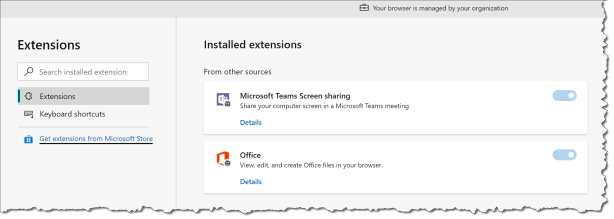
If you are trying to install a extension from Microsoft Store you will get the message: “An Error has occurred”

If you are trying to install a extension from Chrome web store you will get the message: “Oooops”
- Click Add to Chrome
- Click Close

If you enter edge://policy/ in the Edge browser you can see all the policy that the IT admin has deployed to the end user and in this case you can also see the 3 browser extension policy that is deployed to this device

Happy testing
Read more:
Microsoft Edge – Policies
Deploy Microsoft edge dev for business as a msi with intune
![Windows-Hello-For-Business-Active-Directory[1]](https://maciejrebisz.com/wp-content/uploads/2025/08/Windows-Hello-For-Business-Active-Directory1-1024x576-65x65.png "Windows-Hello-For-Business-Active-Directory[1]")
![B-Intune-Graphic[1]](https://maciejrebisz.com/wp-content/uploads/2025/08/B-Intune-Graphic1-1024x603-65x65.png "B-Intune-Graphic[1]")
![wp-1593849019379[1]](https://maciejrebisz.com/wp-content/uploads/2025/08/wp-15938490193791-65x65.jpg "wp-1593849019379[1]")