
How to use ADMX based OneDrive policy in Intune for Known Folder Move – Mobile-First Cloud-First
As part of the new updated release of administrative templates that will let you use Intune to configure select Group Policy settings for Windows PCs. These templates use the Policy Configuration Service Provider (CSP) to provide up to 2500 additional settings from Office, Windows, and OneDrive.
With the ADMX based policies in Intune , we can easy create a policy that sets the OneDrive Know Folder Move (KFM) – in my opinion KFM is necessary to give the end user the best user experience for a Microsoft 365 driven device. It means that with 3 easy policy settings you can enable KFM for users.
To get started you need information on your tenant ID:
Go into your favorite Azure Active Directive (AAD) tool and get your tenant ID.
- Click Properties
- Select the copy function from the Directory ID and save it to later

How to create the policy in Intune:
Start the M365 Device Management Portal
- Select Device configuration
- Select Profiles
- Select Create profile

- Enter a name : OneDrive KFM
- Platform : Windows 10 and later
- Profile type : Administrative Templates

- Click Settings
- Search for OneDrive

Then it is just to find and configure the 3 most important setting to get KFM to work – you can also set other settings as your need in your enviroment.
Silently sign in users to the OneDrive sync client with their Windows credentials

Use OneDrive Files On-Demand

Silently move Windows known folders to OneDrive
- Select Enable
- Enter your tenant ID you found in the AAD portal
- Select No
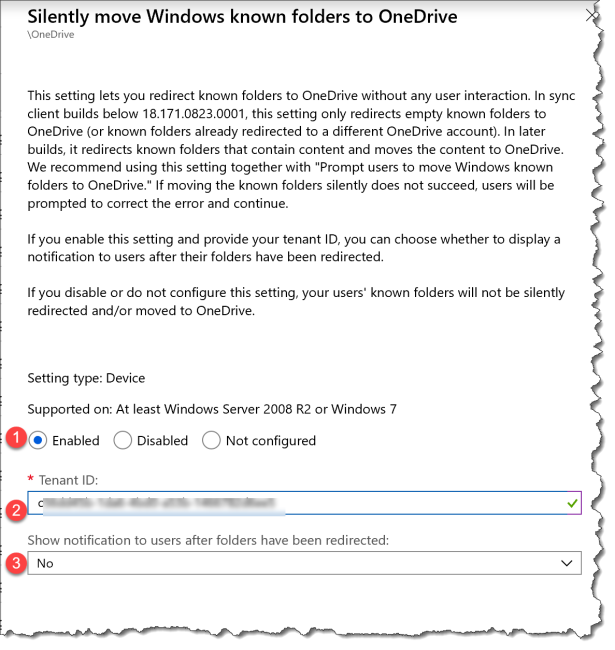
Then you end up with a policy with this 3 settings and you are ready to deploy.

How does it looks like from a end user perspective:
First of all the end user OneDrive verion has to be at least 2018 Build 18.116.0610.0002 I have seen that even if the OneDrive has been update for one user on the device user number 2 can have a different OneDrive version and there for the KFM will not work for that user.

OneDrive will get a new blade called “Auto Save” when KFM is enabled.

The Known Windows folder will get OneDrive Sync icon

The known Windows folders will show up in OneDrive

Happy deployment
Read more at :
Migrate Your Files to OneDrive Easily with Known Folder Move
![Windows-Hello-For-Business-Active-Directory[1]](https://maciejrebisz.com/wp-content/uploads/2025/08/Windows-Hello-For-Business-Active-Directory1-1024x576-65x65.png "Windows-Hello-For-Business-Active-Directory[1]")
![B-Intune-Graphic[1]](https://maciejrebisz.com/wp-content/uploads/2025/08/B-Intune-Graphic1-1024x603-65x65.png "B-Intune-Graphic[1]")
![wp-1593849019379[1]](https://maciejrebisz.com/wp-content/uploads/2025/08/wp-15938490193791-65x65.jpg "wp-1593849019379[1]")