
How to use ADMX based Onedrive policy in Intune for Known Folder Move – Mobile-First Cloud-First
Last year I did a blogpost on How to deploy OneDrive Known Folder Move with Intune that uses the Intune Management Extension to deploy a PowerShell script – that one is still working and you can see all the detailed information from my blog post on Known Folder Move. I found that in production this works well, but in some cases it takes some time to get the settings on the device. do the the installation of the Intune Management Extensions – and it can be the same issue when using Windows Autopilot reset, that there can go some time before the Intune Management Extention is getting installed on the device again.
So what is the other option than using PowerShell – it is ADMX based policy in Intune that is build in with Windows 10 – this is what this blogpost is about.
To get started you need some information:
You need the onedrive ADMX from you local drive %LocalAppData%\Microsoft\OneDrive\18.192.0920.0012\adm – where you need to change the OneDrive version number with the one you have on your device.

You need the hole content from the OneDrive.admx file

How to create the policy in Intune:
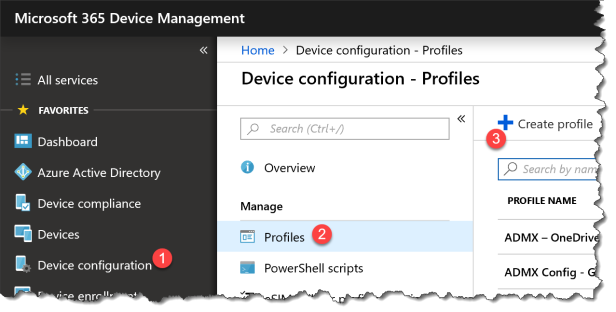
Start the M365 Device Management Portal
- Select Device configuration
- Select Profiles
- Select Create profile
- Name : OneDrive.admx
- Description : Enter the version number for the OneDrive XML
- OMA-URI : ./Vendor/MSFT/Policy/ConfigOperations/ADMXInstall/OneDriveNGSC/Policy/OneDriveAdmx
- Data Type : Select String
- Value : Copy the content on the OneDrive.admx file

You need to create 4 more row of OMA-URI Settings:
One:
- Name : OneDrive.admx
- Description : Enter the version number for the OneDrive XML
- OMA-URI : ./Vendor/MSFT/Policy/ConfigOperations/ADMXInstall/OneDriveNGSC/Policy/OneDriveAdmx
- Data Type : Select String
- Value : Copy the content on the OneDrive.admx file
Two:
- Name : SilentAccountConfig
- Description : Silently configure OneDrive using the primary Windows account
- OMA-URI : ./Device/Vendor/MSFT/Policy/Config/OneDriveNGSC~Policy~OneDriveNGSC/SilentAccountConfig
- Data Type : Select String
- Value :
Three:
- Name : KFMOptInNoWizard
- Description : Prevent users from redirecting their Windows known folders to their PC
- OMA-URI : ./Device/Vendor/MSFT/Policy/Config/OneDriveNGSC~Policy~OneDriveNGSC/KFMOptInNoWizard
- Data Type : Select String
- Value :
Four:
- Name : FilesOnDemandEnabled
- Description : Enable OneDrive Files On-Demand
- OMA-URI : ./Device/Vendor/MSFT/Policy/Config/OneDriveNGSC~Policy~OneDriveNGSC/FilesOnDemandEnabled
- Data Type : Select String
- Value :
Or we can just to it with a import script:
First we need the .\DeviceConfiguration_Import_FromJSON.ps1 from Github
Second you need the .json file to import into your Intune from Github
Start by running the DeviceConfiguration_Import_FromJSON.ps1

Then do the authentication. The script will test if you have the AzureAD PowerShell module or the AzureAD preview one. If you do not have installed it – you will be asked to install it and run the script again.
Then you will be asked for the .json file ADMX–OneDrive.admx-KFM.json

Then it will import and create the policy directly in Intune

Then you can see the OneDrive profile in Intune and deploy it to your users

Happy testing
![Windows-Hello-For-Business-Active-Directory[1]](https://maciejrebisz.com/wp-content/uploads/2025/08/Windows-Hello-For-Business-Active-Directory1-1024x576-65x65.png "Windows-Hello-For-Business-Active-Directory[1]")
![B-Intune-Graphic[1]](https://maciejrebisz.com/wp-content/uploads/2025/08/B-Intune-Graphic1-1024x603-65x65.png "B-Intune-Graphic[1]")
![wp-1593849019379[1]](https://maciejrebisz.com/wp-content/uploads/2025/08/wp-15938490193791-65x65.jpg "wp-1593849019379[1]")