
How to setup MAM for Windows 10 (1703) – Cloud First
It is a lightweight management solution for BOYD devices. MAM protects company data on a unmanaged device. MAM extents data management to applications configured with a MAM policy in Microsoft Intune while the devices is self is managed. Policies is applied to user groups in Azure Active Directory (AzureAD). Only the managed applications have access to company data, company data is protected within these applications by using Windows Information Protection (WIP) technology.
The advanced of MAM is that the coporate IT department can remote wipe company data without deleting personal data or wipe the entire device.
MAM for Windows only works for Windows 10 build 15063 or greater.
What Applications works with MAM:
MAM is intended for devices that are not under management from the coporate IT department – to avoid loss of personal data on the user’s devices MAM management is limited to applikations that are WIP aware.
Application list:
- Microsoft Edge
- Internet Explorer 11
- Microsoft People
- Mobile Office apps, including Word, Excel, PowerPoint, OneNote, and Outlook Mail and Calendar
- Microsoft Photos
- Groove Music
- Notepad
- Microsoft Paint
- Microsoft Movies & TV
- Microsoft Messaging
- Microsoft Remote Desktop
How to enable MAM for Windows devices:
Start in the Azure portal https://portal.azure.com
Go to Azure Active Directory – Mobility (MDM and MAM)

If you are running Intune then select Microsoft Intune – else Add application and select Microsoft Intune

Select MAM user scope.
Some : Selection by groups
All : Every AzureAD user
Remember to click save

Click Restore default MAM URLs
Click Save
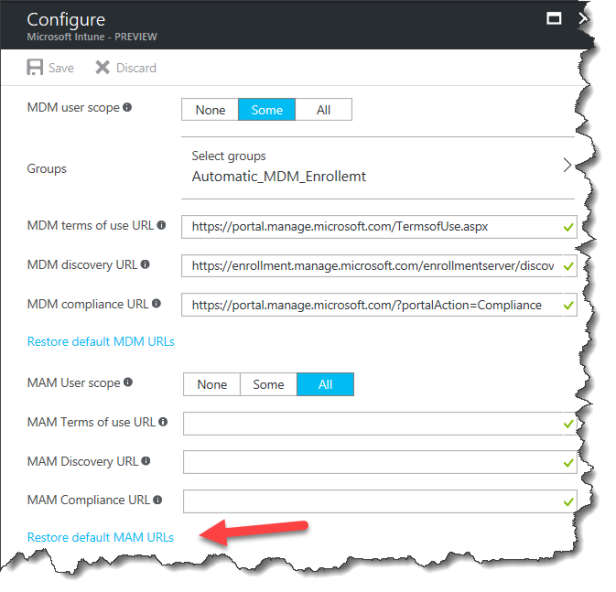
Now you are ready to create your App protection policies.
How to create a MAM policy for Windows 10
Go into the Intune Blade of the Azure Portal
Select Mobile Apps

Select App protection policies

Click Add a policy

- Give the policy a name “Windows 10 MAM”
- Platform – select Windows 10
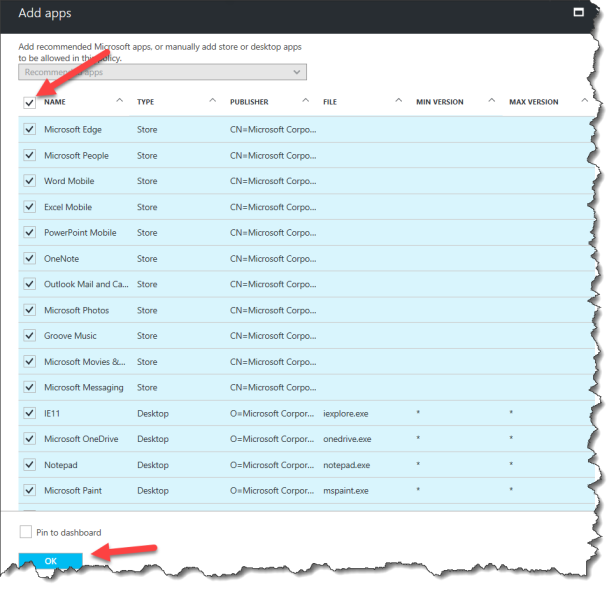
- Click Allowed apps

Click Add apps

Select all apps or just the once you will protect company data in.
Select “Configure required settings”
Under Windows Information Protection mode select one of four mode:
- Hide overrides: Blocks enterprise data from leaving protected apps.
- Allow overrides: User is prompted when attempting to relocate data from a protected to a non-protected app. If they choose to override this promt, the action will be logged.
- Silent: User is free to reloacate data off protected apps. These actions are logged.
- Off: User is free to relocate data off protected apps. No action are logged.

Now you are ready to test your MAM policy on a Windows 10 device.
![Windows-Hello-For-Business-Active-Directory[1]](https://maciejrebisz.com/wp-content/uploads/2025/08/Windows-Hello-For-Business-Active-Directory1-1024x576-65x65.png "Windows-Hello-For-Business-Active-Directory[1]")
![B-Intune-Graphic[1]](https://maciejrebisz.com/wp-content/uploads/2025/08/B-Intune-Graphic1-1024x603-65x65.png "B-Intune-Graphic[1]")
![wp-1593849019379[1]](https://maciejrebisz.com/wp-content/uploads/2025/08/wp-15938490193791-65x65.jpg "wp-1593849019379[1]")