
A standard AzureAD user have access to browse the admin portal – Mobile-First Cloud-First
In a on-premise Active Directory a normal user can read the directory by default using a LDAP browser. We put firewall and other security measure in place so that it is impossible to reach from the outside.
When we sync all our users to Azure Active Directory – I often see that no security measure are in place. In my work I see a lot of installations where ADFS is the only security measure – ADFS is used to login in to Azure AD without having the users password in the cloud – but the ADFS is setup to allow all authenticated users.
Last week I was at a customer where I showed them that a standard user can get access to browse there AzureAD users, groups and enterprise apps in the AzureAD. This was not acceptable by there security department, and I totally agree. So we used Azure AD conditional access to control the access both for on-premise users and cloud only users.
What is the problem:
When a user log in to the old Azure AD portal https://manage.windowsazure.com the user gets this message:
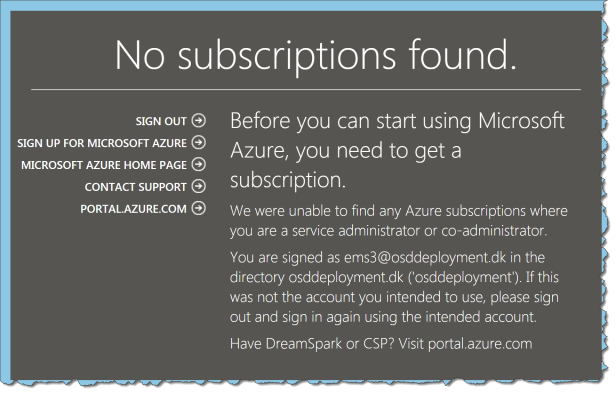
No access – no problem!
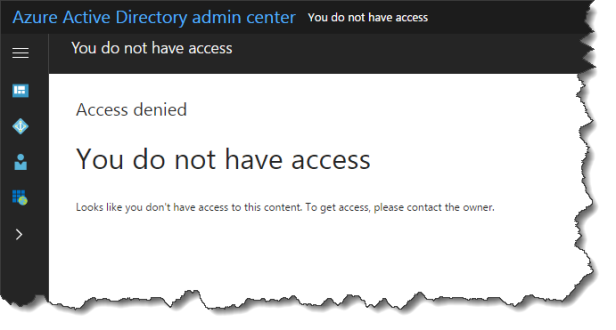
When the user log in to the new Azure AD portal https://aad.portal.azure.com the use gets this:
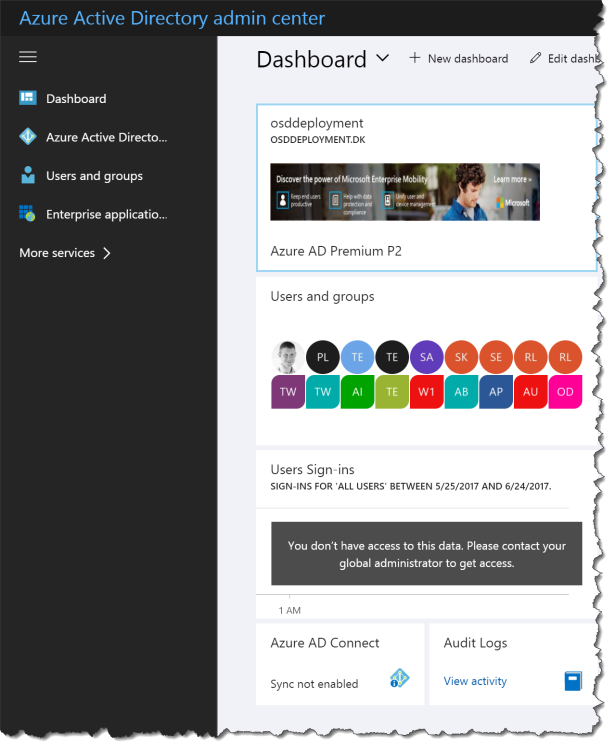
Yes there is settings and data a standard users cannot see, like “Users Sign-ins” and the user cannot change anything in AzureAD.
It is the same if the standard user logs in to https://portal.azure.com but then the user can see under “My permissions” that there is no access to any subscriptions and there is no access to other resources in Azure.
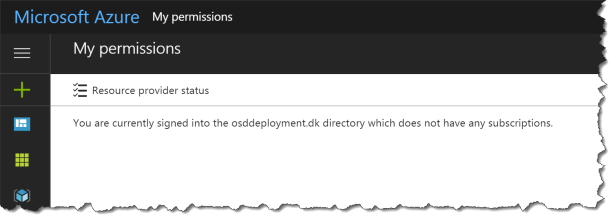
Standard user can create a support ticket on:
- Billing
- Subscription management

What is the solutions:
The quick fix for this is Conditional Access on the cloud App Microsoft Azure Management.
How to setup Conditional Access for Microsoft Azure Management:
Login with a admin to https://aad.portal.azure.com
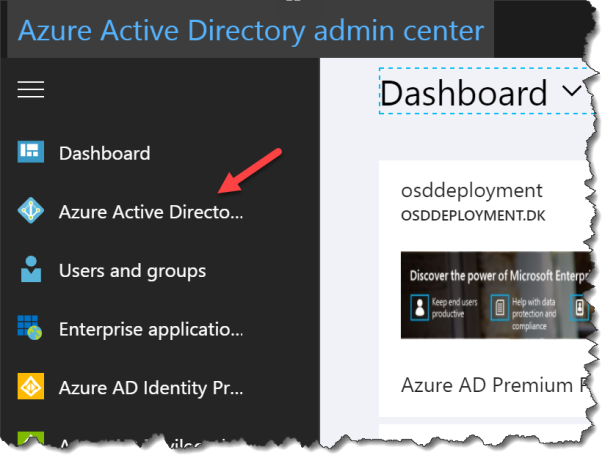
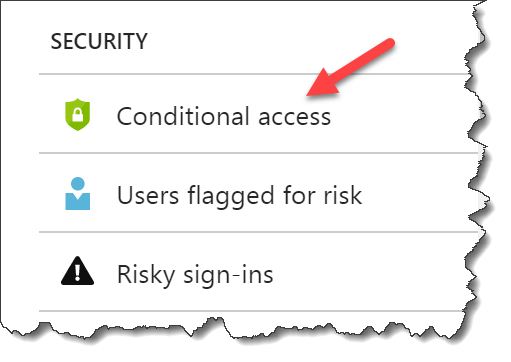
Go to Security – Conditional access
Click New policy
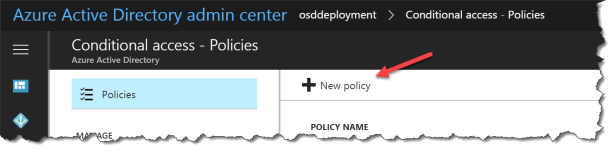
Give the CA policy a name
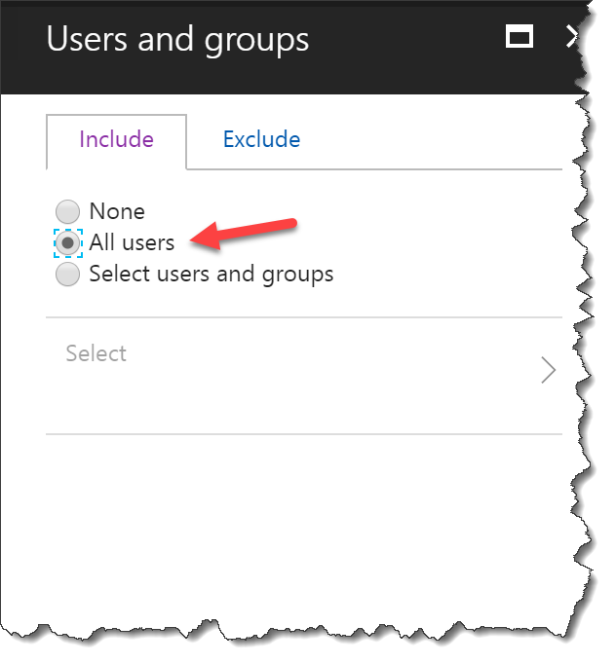
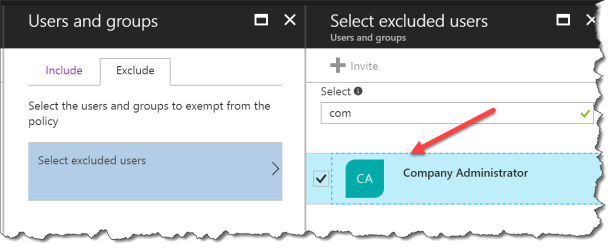
Click on Users and groups

Select All users
Remember to select a Exclude user or you have removed your access to change this policy
Select Exclude
Click Select excluded users
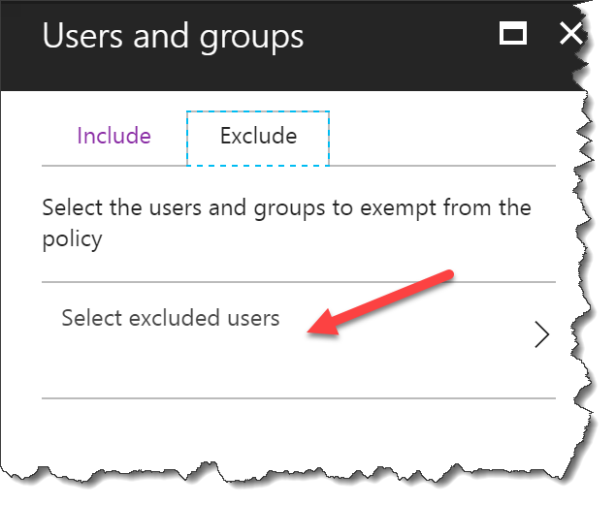
Select a group with least one global admin !!!
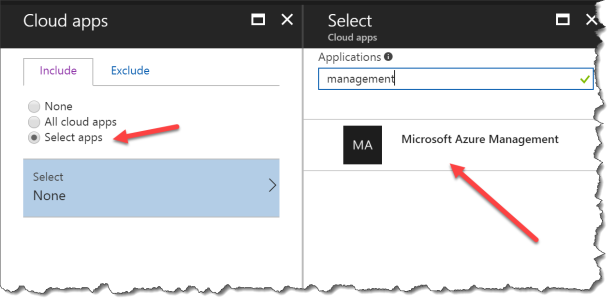
Select Cloud apps

Click Select apps
Search for Microsoft Azure Management and select the app
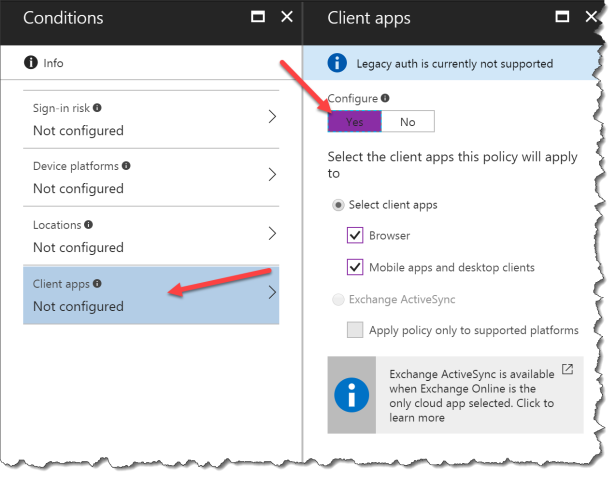
Select Conditions

Select Client apps
Click Yes – the both Browser and Mobile apps and desktop clients will be blocked
Info: Use Locations if you only whats this to apply outside your trusted network
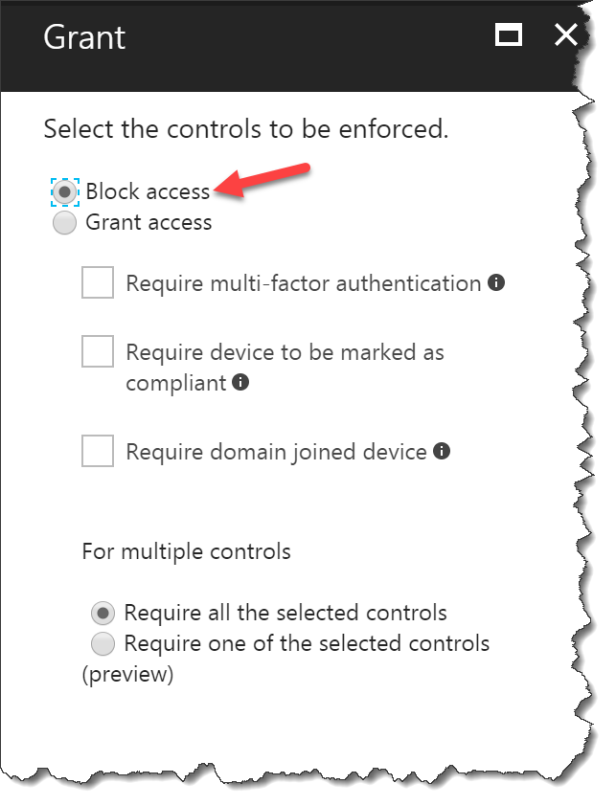
Select Grant

Click Block access
Click On to enable the Conditional Access policy

Now you have blocked the access for standard users from accessing your AzureAD.
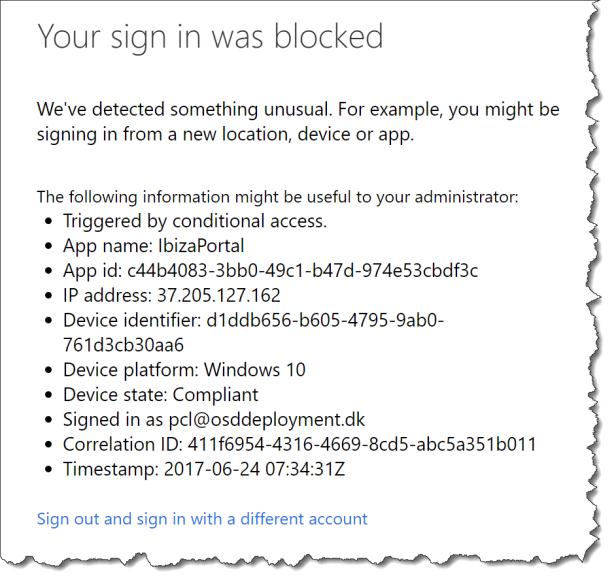
When the policies is in effect the user will get this message when accessing the Azure portal from a browser or from the mobile Azure app
There is also another way to do this:
Conditional Access requires Azure AD Premium license – if you don’t have that there is also another way.
This will only apply to standard users – and not a user with privileged access (User administrator, password administrator, etc.) and you cannot do inside/outside rule like in the Conditional Access.
Inside the Azure AD you can set:
Go to User settings – Administration portal
Restrict Access to Azure AD administration portal to Yes.
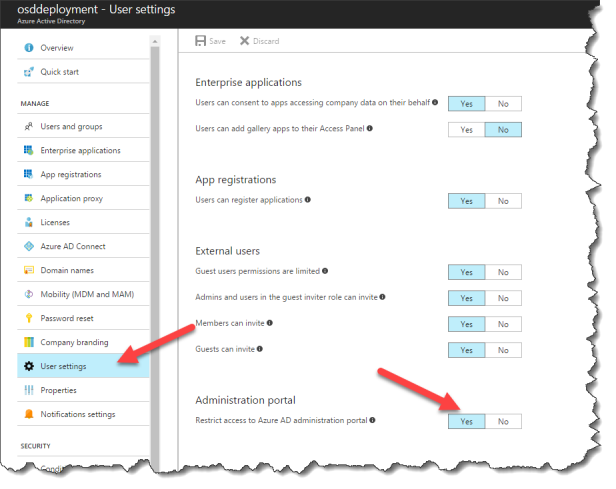
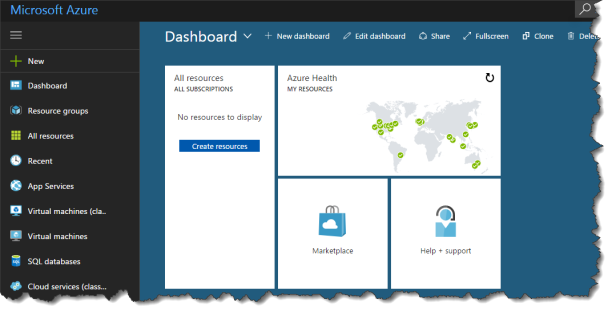
This will not block your users from accessing https://portal.azure.com
This will only create a Access denied when accessing the AzureAD.
![Windows-Hello-For-Business-Active-Directory[1]](https://maciejrebisz.com/wp-content/uploads/2025/08/Windows-Hello-For-Business-Active-Directory1-1024x576-65x65.png "Windows-Hello-For-Business-Active-Directory[1]")
![B-Intune-Graphic[1]](https://maciejrebisz.com/wp-content/uploads/2025/08/B-Intune-Graphic1-1024x603-65x65.png "B-Intune-Graphic[1]")
![wp-1593849019379[1]](https://maciejrebisz.com/wp-content/uploads/2025/08/wp-15938490193791-65x65.jpg "wp-1593849019379[1]")